 Setup LTX Studio
July 3, 2025 (March 9, 2026)
LTX Studio API has been retired due to low demand. If you are interested in using it, this API can be easily resurrected — please contact [email protected] with your request.
Table of contents
- Use Gmail account to create a LTX Studio account
- Locate your LTX Studio
cookie - Verify and add account
Approximately 5 minutes to complete setup steps.
This is the setup guide for LTX Studio API. An active LTX Studio account and a useapi.net subscription are required for the API to work.
LTX Studio provides access to LTX-Video models capable of generating video in a near real-time, Google’s Veo model, and the FLUX.1 Kontext model.
Use Gmail account to create a LTX Studio account
Use your Gmail account to create a LTX Studio account if you don’t have one already.
Locate your LTX Studio cookie
LTX Studio cookie expires after 3 months. You will need to repeat the process described below every 3 months.
Open a Chromium-compatible browser (e.g. Google Chrome, Microsoft Edge or Opera) and navigate to https://app.ltx.studio.
If you are already logged in to your LTX Studio account, make sure to log out. This is an IMPORTANT step, do not skip it.
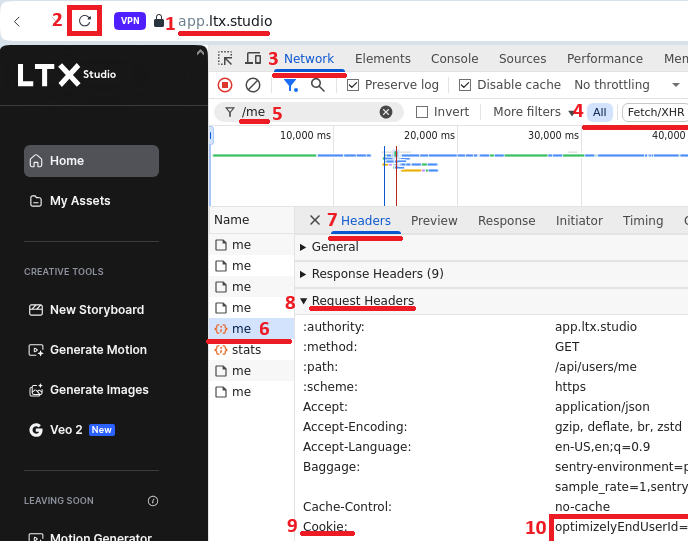
Login to your LTX Studio account 1 and refresh the page 2.
Once the page is fully loaded, ensure that you’re logged in.
Open Developer Tools by right-clicking on the page and selecting “Inspect Element” or via keyboard shortcuts: Mac Command+Option+I or Windows F12 or Control+Shift+I.
Select Developer Tools » Network 3:
- Make sure that
AllorFetch/XHRis selected4. - Type
/mein the filter box5and press Enter. - Locate the
mehttp call shown on the image above6, click on that entry. - Select the “Headers” tab
7. - Locate Request Headers
8Cookie9and copy its entire value10.
This is yourcookie.
As an example above the cookie:
optimizelyEndUserId=abc9376852143759a8.5293814067427834; x-country-code=CA; successfulLogin=true; lt_refresh_token=XZH3wPmQygrpBuZRXMvGb_ui8LmWVuQ4vx47JBkF82-xc4edziuGYeT9aNL7-k2v; lt_id=zxcwTYfgHrpxxBbOG3V-K; optimizelySession=2849625738195; lt_token=eyJh…
After the cookie is retrieved, DO NOT LOG OUT from the account and simply close the browser. Logging out will terminate your session and prevent the API from using your cookie.
You MUST close the browser tab containing the session used to retrieve the cookie for the API. If you keep it open, the cookie will be refreshed within the browser and will prevent the API from refreshing your cookie properly, resulting in an email with an error message.
If you want to use the account linked to the API from the browser, ensure that you clear all cookies before opening the ltx.studio website again.
Verify and add account
Use the form below to verify your cookie and add your LTX Studio account.
Select Add Account to complete setup, or Verify to test your cookie first. You should receive response 200 if successful. You can also use POST /accounts directly.